
This dedicated server specs guide starts with one decision: which resource your workload runs out of first, whether that is processor cores, memory, storage speed or network capacity. Size that resource first, then fill in everything else around it.
Processor choice has its own deep dive in best cpu for dedicated server. The sections below take the remaining hardware decisions in the order most buyers need to settle them: workload fit, bare metal control, processors, memory, storage and RAID, network ports, power, and remote management.
- Web or application traffic: weight cores and memory first, then add fast storage.
- Database-heavy work: weight memory and storage speed ahead of raw core count.
- Media, video or mail: weight cores and network capacity, then check the workload-specific guides linked below.
- Uptime-sensitive services: weight redundancy in drives and power, plus out-of-band remote management.
Start with the workload, not the catalog
A dedicated server specification is a set of trade-offs, and the workload decides which trade-offs are worth making. Provider guidance gives starting points by workload type. Cherry Servers suggests 8 cores as the minimum for web servers and 48 or more cores for video processing. Those figures are floors and recommendations for a category, not a target for every site, so use them to see which side of the range your project sits on.
Work out the category before you compare plans. A catalog lists many combinations, and most of them are built for workloads you may not have. Matching the workload first narrows the list quickly, and it stops you paying for cores a single-purpose site will never use or buying a light plan for a busy application.
Web and application servers
Web serving benefits from cores because many requests are handled at once. The 8-core minimum for web servers is a useful sanity check against the smallest plans in provider catalogs. If a plan has fewer cores than that, treat it as suitable for light, single-purpose sites rather than a busy public application.
Memory follows the same logic. Cherry Servers gives a rule of 2-4GB per CPU core for web servers, so memory should be checked against the core count. Use the rule to check a plan’s memory against its core count instead of reading the two numbers separately.
Databases
Databases are limited more by memory and storage than by cores. The sizing rule from the same provider is the active dataset plus 20% overhead for memory, which makes the size of your hot data the number to find before you shop. If you cannot say how large the active dataset is, measure it on your current system before choosing a RAM tier.
A generous core count will not rescue a database that is short on memory. Skynet Hosting notes that running short on RAM shows up as a database that starts reading from disk instead of memory, so the fix for that symptom is in the memory and storage specification rather than the processor.
Mail and media workloads
Mail and streaming servers each have their own hardware profile. The guide to mail server hardware requirements covers the mail case, and the guide to a dedicated server for video streaming covers video. The 48-core recommendation for video processing shows how far that profile sits from an ordinary web server, so do not treat a web-server plan as a shortcut for video work.
Bare metal and single-tenant hardware
A dedicated server is a bare metal server: you rent the whole physical machine, and nothing shares it with other customers. That changes what you can control and what you can rely on. It also changes what you are responsible for, because the choices below are yours rather than a hosting plan’s defaults.
The bare metal definition matters in practice. There is no virtualization layer between your applications and the hardware, so the machine behaves as one physical unit. Cherry Servers describes two practical benefits of that arrangement, and both affect how you plan.
First, CPU, RAM and storage are exclusive to you, so there are no “noisy neighbor” problems or performance degradation caused by other users’ applications. A slow query or a busy process comes from your own workload, which makes it easier to measure and fix. Second, you get complete access to configure the operating system, kernel settings and system parameters. If your software needs a specific kernel module, a tuned network stack or an unusual filesystem layout, that is the strongest reason to choose dedicated hardware over a shared environment.
Full control also means choosing your own operating system and keeping it patched. If that is more administration than your team wants, weigh it before paying for hardware you cannot comfortably manage. Control and responsibility arrive together, and the remote management section below is the safety net for the cases where a configuration change leaves the machine unreachable.
Processor and socket decisions
Provider catalogs offer AMD EPYC or Intel Xeon processor families, with core counts ranging from 8 to 128 according to Cherry Servers. Either family can serve most workloads, so choose by the specific model’s core count, clock speed and price rather than by brand. The comparison of xeon vs epyc for dedicated server builds goes through that in detail.
A provider catalog shows the range within one brand. A Small Orange’s specification page lists a single-CPU example plan with a quad-core Xeon E3-1220 V2 at 3.1 GHz base and 3.5 GHz turbo, paired with 4GB of RAM and a 128GB SSD. The same page lists a top multi-CPU configuration with two Xeon E5-2620 processors, giving 12 cores and 24 threads at 2 GHz base and 2.5 GHz turbo, 32GB of RAM and a 512GB SSD. The catalog also gives process sizes of 22 nm for the E3 and 32 nm for the E5-2620. Those figures help when comparing generations, but the core count and memory you can actually buy matter more to the workload.
The second configuration trades clock speed for core and thread count, which is the same choice you face on any catalog. Software that runs many parallel tasks gains from the extra cores and threads, while software bound to a few busy threads gains more from clock speed. Decide which of those describes your application before reading the headline core number.
One socket or two
A second processor socket increases the number of cores a single machine can hold, and the top multi-CPU example above shows what that looks like in practice. Choose a dual-socket machine when one processor cannot reach the core count your workload needs. Otherwise a single processor with a higher core count keeps the configuration simpler to choose and compare. The guide to single socket vs dual socket server sets out when each makes sense.
The motherboard sets the boundaries
The server board defines the platform you are buying into, so it belongs in the decision alongside the processor. Server boards and desktop boards are built for different duties, which is why the comparison of server motherboard vs desktop motherboard matters if you are specifying hardware you will own or reuse. When you rent a plan, the board is the provider’s concern, but the listed processor and memory options are the boundaries you are choosing within.
Memory: capacity and ECC
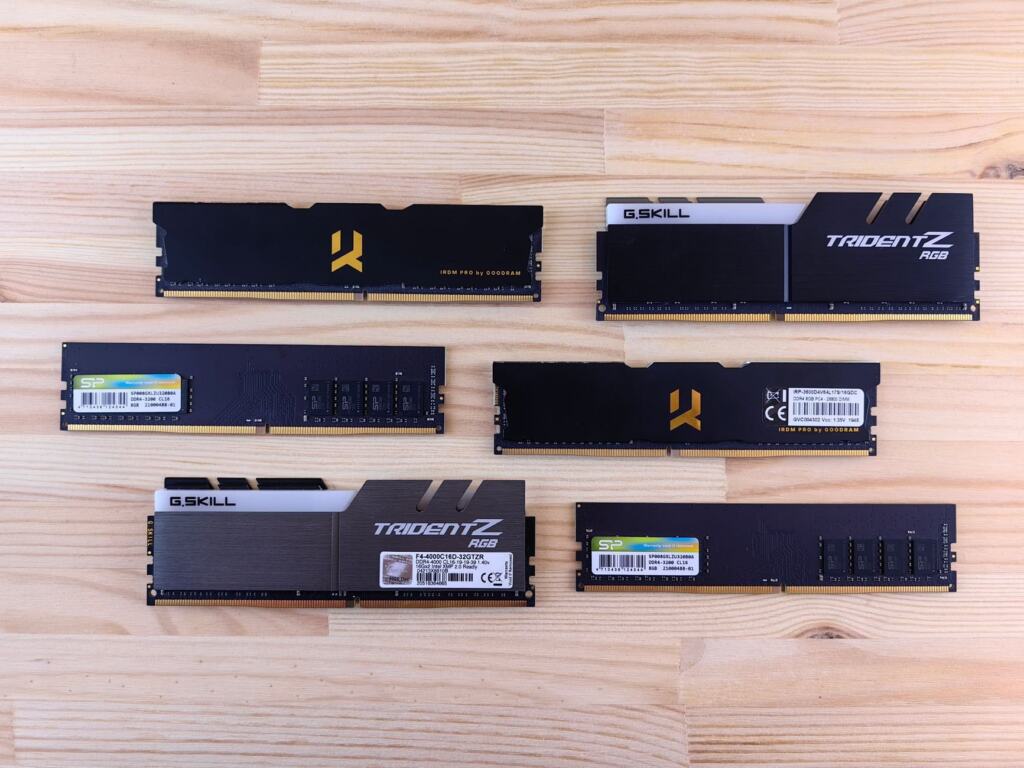
Server memory is the easiest spec to under-buy and the one that most directly shapes how a database or application feels. Cherry Servers lists configurations from 16GB to over 1TB of RAM, so capacity is not the constraint on modern plans. Choosing the right tier is.
Sizing rules worth using
The same provider gives two rules of thumb that cover most cases. For web servers, plan 2 to 4GB of RAM per CPU core. For databases, plan the active dataset plus 20% overhead. Both are planning guides that depend on your application, so treat them as a starting estimate and adjust after watching real usage.
Applying the per-core rule to the catalog shows where plans fall short. On four cores, the web-server rule gives 8GB to 16GB, so the 4GB example plan from A Small Orange falls below it. The example plans therefore show a clear difference between an undersized and a reasonably sized memory tier. The deeper walkthrough is in how much ram does a dedicated server need.
Why ECC matters
ECC (error-correcting) memory prevents data corruption, according to Cherry Servers. That makes it the sensible default for servers that hold data you cannot easily regenerate, such as databases, mail stores and file servers. A cache or a set of rebuildable files is a lower-stakes case, and there the cost difference may matter more. The full comparison is in ecc vs non ecc memory for servers. If a plan lets you pick, choose ECC when correctness matters more than saving a little on cost.
Storage and RAID
Storage decisions have two parts: the drive type, which sets speed, and the RAID arrangement, which sets how the server behaves when a drive fails. Decide them separately, because a fast drive type does not protect data and a redundant array does not make slow drives fast.
Drive type
The speed gap between drive types is large. Cherry Servers puts NVMe at 100,000+ IOPS against 5,000-10,000 IOPS for a SATA SSD. Those are comparison figures for each class, not guarantees for any single drive, but the difference explains why transaction-heavy databases and busy stores move to NVMe. A mostly static site or a backup target may not need it. The comparison of ssd vs hdd vs nvme dedicated server options covers the cost and capacity side, and the nvme dedicated server guide explains setup and drive form factors.
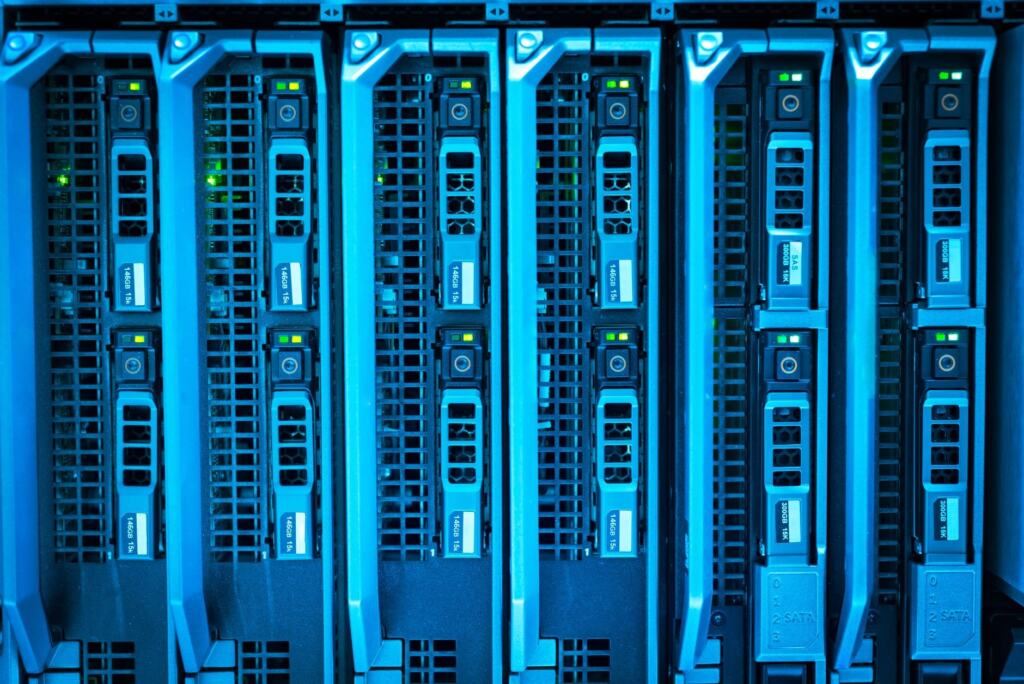
Capacity is a separate question from speed. A 128GB drive leaves little room for a database and its logs, so check how much data you expect to hold before you accept a small drive for a plan that otherwise looks strong.
Choosing a RAID level
Providers describe RAID as a way to get redundancy and performance from several drives, and their catalogs typically pair NVMe or SSD drives with it. The levels differ in how they balance usable capacity, tolerance for drive failure and speed. Choosing between them comes down to what you can least afford to lose.
- If downtime is the main risk: choose a level that keeps the server running after a drive failure, and accept that you will have less usable space than the raw drive total.
- If speed is the main goal: choose a level that favours performance, and recognise that it may offer less protection if a drive fails.
- If usable capacity is the goal: check how much space each level leaves for your data before comparing drive counts.
RAID keeps a server available through a drive problem, but it is not a substitute for separate backups. A RAID array protects against one failure mode, and it will not recover files you deleted or a database you corrupted. The guide to the best raid level for dedicated server use cases compares the levels one by one.
Controller choice
RAID can be run by a dedicated controller card or by the operating system. The choice affects cost, performance and how easily you recover an array, and it is covered in hardware raid vs software raid. Check which your provider supplies before you assume either, because an array you cannot rebuild is only a partial safety measure.
Network ports and bandwidth
Dedicated server network speeds run from 1 Gbps to 10 Gbps according to Cherry Servers, and both example plans on A Small Orange’s specification page list a 1 Gbps uplink. For many sites that is enough. The case for 10 Gbps is a workload that moves large files or many simultaneous streams, where the port itself would become the ceiling.
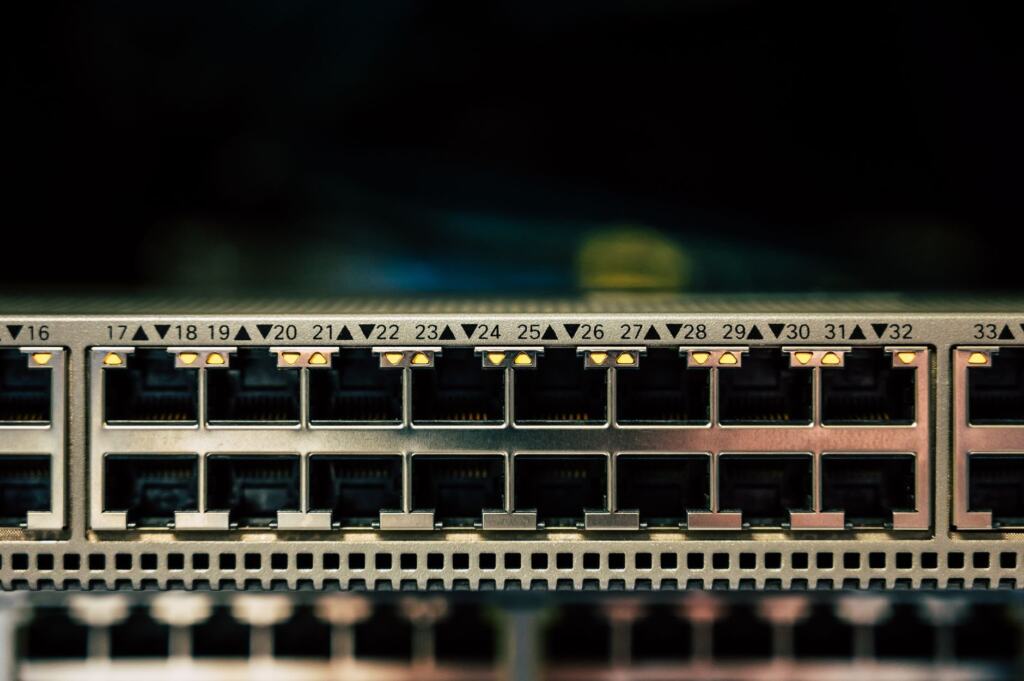
Do not pay for a faster port because the number looks better. Look at your actual traffic and the provider’s price for each tier first. Video and large downloads usually reach the point where the port matters before ordinary web pages do. The comparison of 1gbps vs 10gbps dedicated server plans looks at the cost and traffic patterns that tip the decision.
Power, form factor and add-ons
Power supplies and chassis rarely appear in a headline spec, yet they decide how the machine behaves when something goes wrong. A server with a second power supply can keep running if one fails, which is why uptime-sensitive services look for it. The guide to the redundant power supply server option explains what to ask a provider.
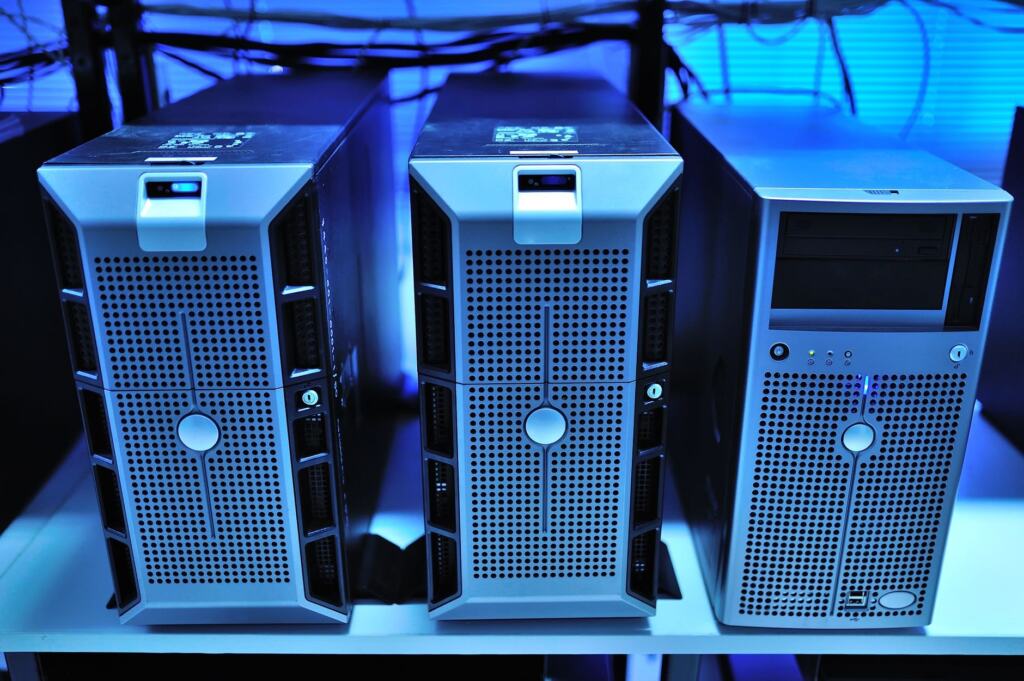
Form factor matters mainly if you buy and host your own hardware, because a tower and a rack unit call for different space and cabling. If you rent from a provider, the chassis is their concern, but redundancy and drive bays still affect you. Ask which power and drive options a plan includes rather than assuming them. Workloads built around graphics processors need a different class of machine, covered in gpu dedicated server setups.
Remote management with IPMI and IP KVM
Remote management lets you reach the machine’s hardware without sitting in front of it, and this is where IPMI belongs in your specification. When you check a plan, look for the management capability itself, not only the processor and memory figures. Cherry Servers describes IP KVM (Keyboard, Video, Mouse) for remote management and gives full server control even when the OS is unresponsive.
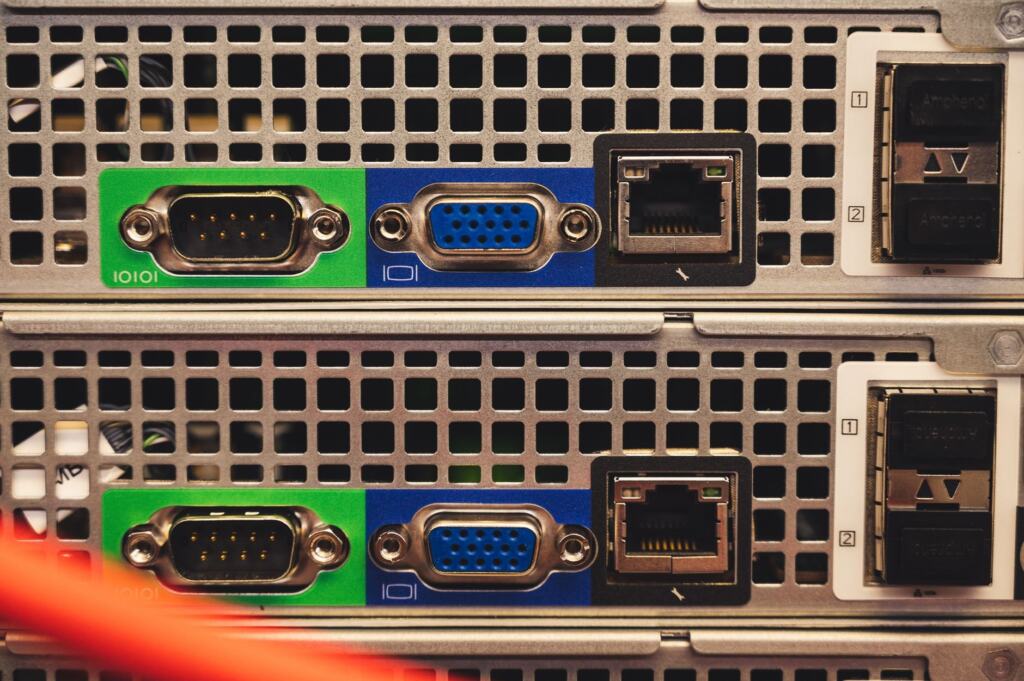
That independence is why remote management matters. If the operating system hangs, a bad update stops a boot or a firewall rule locks you out, a remote console still shows the screen and accepts input. Without that path, recovery depends on someone reaching the machine in person. Choose a plan that includes IP KVM access if the server runs anything you cannot leave offline, and treat it as a requirement for machines in a data center you do not visit.
Reading a spec sheet before you order
A spec sheet is only useful if you read each line for its unit and condition. Several figures look alike but measure different things, so check these points before comparing two plans.
- Cores versus threads: the 12-core example is listed as 12 cores and 24 threads. Compare the core count with your workload’s parallelism, and treat thread count as a separate figure.
- Base versus turbo clock: both example processors list a base and a turbo speed. Compare base figures across plans for a like-for-like view, then consider turbo as an upper figure.
- Memory size against core count: read RAM beside the core count and apply the 2-4GB per core rule for web servers, rather than judging either number alone.
- Drive type and capacity: an NVMe or SSD label tells you the class, and the capacity tells you how much room you have. Both matter, and neither answers the RAID question.
- Port speed and power: a 1 Gbps uplink and a single or redundant power supply are different commitments. Confirm both rather than assuming they come together.
Missing lines are information too. If a listing does not state the RAID arrangement, the controller type, or whether remote access is included, ask the provider before ordering rather than inferring the answer from the price.
Typical configurations at a glance
| Configuration | Typical values | Planning use |
|---|---|---|
| Single-CPU example plan | Xeon E3-1220 V2 quad-core, 3.1 GHz base, 3.5 GHz turbo; 4GB RAM; 128GB SSD; 1 Gbps | Below the 8-core web server minimum, and 4GB is low for the 2-4GB per CPU core rule for web servers. Suits light, single-purpose work only. |
| Top multi-CPU configuration | 2x Xeon E5-2620, 12 cores and 24 threads; 2 GHz base, 2.5 GHz turbo; 32GB RAM; 512GB SSD; 1 Gbps | Shows what a second socket adds in cores, threads and memory. Suits parallel workloads more than single-thread-bound ones. Its 32GB of memory is the listed tier for this plan. |
| Current provider range | AMD EPYC or Intel Xeon, 8 to 128 cores; 16GB to over 1TB RAM; 1 to 10 Gbps; NVMe or SSD with RAID | Upper and lower bounds of what a provider offers, not a recommendation. Pick the point on each range your workload justifies. |
These values come from the specification page at A Small Orange and the range given in the buying guide from Cherry Servers.
Putting a configuration together
Work through the decisions in order of what a mistake costs. A processor choice that turns out slightly off can usually be lived with, while an undersized memory tier or the wrong drive class shows up quickly in the application. Start with the limiting resource for your workload, then set memory and storage around it, and leave the processor for last unless it is the constraint.
For a mid-sized online store, Skynet Hosting’s e-commerce guidance suggests at least four to eight modern CPU cores, 16 to 32 GB of RAM and NVMe SSD storage in a RAID configuration. The pairing gives concurrent shoppers enough cores, keeps the database’s working set in memory, and places orders on fast, protected storage.
If you are unsure between two tiers, take the larger memory tier and the faster drive class before a larger processor. Those are the upgrades the application is most likely to notice, and they address the symptoms a database shows first when it is short of resources.
Frequently asked questions
What is a bare metal server?
A bare metal server is a physical server rented whole, with no virtualization layer between your applications and the hardware, and no sharing of CPU, RAM and storage with other customers.
How can I tell if a server has too little RAM?
A database that starts reading from disk instead of memory is the sign to look for. Skynet Hosting describes running short on RAM in exactly this way, so check memory before blaming storage.
What traffic should I size bandwidth for?
Size it around the busiest hour of your busiest sale day, not your average traffic, as Skynet Hosting advises for online stores.